Can I Edit Framer Templates Without Coding?
Designing a website doesn’t have to mean endless lines of code or hiring expensive developers. Framer templates let you build stunning, fully responsive websites visually, just drag, drop, and edit. Every element, from fonts to animations, updates instantly, giving you complete creative control without touching a single line of code. Those who are not enhanced in coding skills, there is a common query can I edit Framer templates without coding?
Yes, you can edit Framer templates completely without coding. Change colors, swap images, update text, and rearrange layouts instantly using the visual editor. Everything updates in real time with zero technical setup.
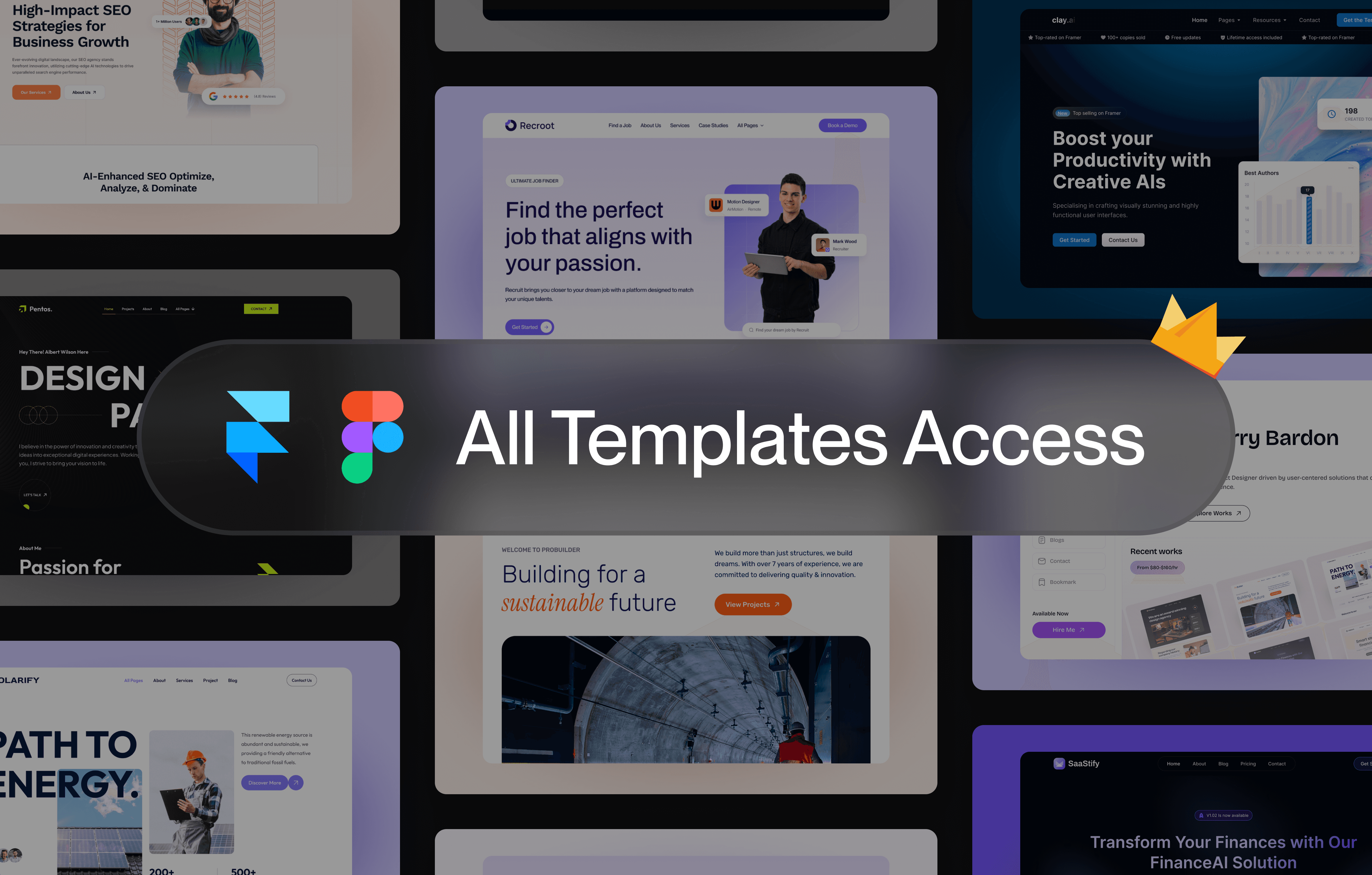
At Pentaclay, we make this process even easier. Our SEO-optimized, high-performance Framer templates help you launch faster with lifetime access, regular updates, and no-code customization trusted by 1,200+ professionals worldwide.
How to Customize Framer Templates Without Coding?
You can customize Framer templates without coding. The visual editor converts your clicks into functional code. Change colors, swap images, edit text, and rearrange layouts through simple interface controls.
Step 1: Choose And Duplicate A Framer Template
First of all, you have to select the right template, as the wrong one can cost you extra time and effort fixing layouts, removing unnecessary elements. To start with:
Match your content needs carefully. A small portfolio layout won’t scale if you plan to feature dozens of projects, while an e-commerce grid won’t suit a blog-focused site.
Next, check the component library for well-organized elements such as buttons, cards, and navigation bars.
Test the CMS collections for dynamic features like blogs, galleries, or team sections to save time later.
Then, preview the breakpoints to ensure your design looks smooth across desktop, tablet, and mobile screens.
Moreover, inspect the layer hierarchy for clear naming conventions, as
The Duplication Process
When you are done, now time to duplicate your template. For this,
Create your Framer account at framer.com.
Navigate to the template. Free templates show a "Remix" button. Premium templates require purchase first.
Click "Remix" or "Duplicate." Framer copies the entire project into your workspace. This creates an independent version..
Rename your project immediately. Click the project name at the top left. Type something descriptive like "Agency Site - Client Name" or "Personal Portfolio V2."
Scroll through the pages panel on the left. Count the pages. Open the Assets tab and review included images, icons, and color styles. Open the CMS panel to see pre-built collections.
Save a backup version. Go to File > Duplicate Project. Name it "Original Template - Backup." You now have a clean copy to reference if you break something during customization.
Step 2: Understand the Framer interface
You've duplicated your template. Before editing, it’s better to have a clear knowledge on how the workspace organizes everything.
The canvas in the center displays your live website, and every change appears instantly. On the left sidebar, you’ll find Pages and Layers for navigation, while the right panel shows element properties. Purple outlines mark global components, whereas blue outlines represent individual elements. Press Cmd/Ctrl + Y to view your site’s hierarchy and parent-child structure.
Step 3: Edit text and images
Once you've placed your template in the workspace, now swap placeholder content with your real brand materials. To do so:
Regular text editing:
Double-click any blue-outlined text to enter edit mode instantly. From there, type directly on canvas like a word processor. Changes save automatically without clicking anything.
Component text editing:
Click purple-outlined components once instead. Then, the right panel reveals text fields under component properties. Change values there to update that specific instance without breaking the component system.
Standard image replacement:
Click any image layer once to select it. Next, the right panel shows a thumbnail preview. Click it to upload your files or browse Framer's Unsplash library directly.
Component image replacement:
Select the parent component first. Then, find the image property in the right panel. Replace it there to maintain component functionality across your site.
Step 4: Adjust Colors And Fonts
Your content is in place. Now make the template visually match your brand identity.
Click the Assets tab in the left sidebar to access color tokens. Then, select any color swatch to open the picker. Every element using that color updates automatically across your entire site.
Find Typography styles in the same Assets panel. Professional sites use 2-3 font styles maximum: one for headings, another for subheadings, and a third for body text. This creates a clear visual hierarchy.
Visit Typewolf to discover trending font combinations that work well together. Alternatively, use Google Fonts to browse thousands of free typefaces with filtering by style and weight.
Use Coolors to generate harmonious color schemes instantly. Then, extract hex codes directly and paste them into Framer's color picker for consistent brand colors.
Check contrast ratios between text and background colors using WebAIM's tool. Aim for 4.5:1 minimum for body text and 3:1 for larger headings to meet accessibility standards.
Step 5: Add, Remove, Or Reorder Sections
Your branding looks consistent. Now restructure the layout to match your content needs.
Most templates include sections you won't use. Click any section frame and press Delete to remove it instantly. To reuse designs, select a section and press Cmd/Ctrl + D to duplicate it. For reordering, click and drag sections up or down. Framer snaps them into place automatically across all breakpoints.
Step 6: Updating the Layout (Optional)
Adjusting the layout in Framer helps refine spacing, alignment, and content flow without disrupting responsiveness. Select any element, then use the Layout section in the right panel to tweak direction, alignment, and padding. You can easily switch between horizontal and vertical stacking or resize frames for balance. However, as experts suggest, avoid drastic layout changes unless necessary. Instead, use Framer’s smart constraints to keep everything adaptive across desktop, tablet, and mobile views.
Step 7: Make it responsive
Over 60% of web traffic comes from mobile devices. Your site must adapt perfectly across all screen sizes, or visitors will leave immediately.
Click device icons in the top toolbar to preview desktop, tablet, and mobile views instantly.
Select any element and find the "Visible on" property in the right panel. Toggle breakpoints to hide or show elements per device.
Click text elements and reduce font sizes in the right panel for the mobile breakpoint. Headings that work on desktop often overflow on phones.
Mobile layouts stack vertically by default. Drag elements to reorder them in the layers panel for better mobile reading flow.
Buttons need 44x44 pixels minimum on mobile. Select buttons and increase padding in the right panel to create larger tap areas.
Click the preview icon and scan the QR code with your phone. This reveals actual rendering issues beyond desktop simulation.
Step 8: Customize Interactions
Static websites feel outdated. Animations turn boring clicks into delightful moments that keep visitors engaged.
Select any button to reveal its hover state in the right panel. Add a subtle scale increase or color shift.
Click elements with fade-in effects applied. Adjust timing in the Effects section so the content appears smoothly.
Open the Interactions panel on navigation items. Change triggers from click to tap for mobile users. Add quick press animations so every interaction feels acknowledged.
Keep animation durations between 0.2-0.4 seconds in timing settings. Longer feels sluggish. Faster feels jarring. This sweet spot creates premium polish.
Press play on canvas to catch awkward transitions early. Then use preview mode to experience animations as visitors will. Slow connections reveal hidden performance problems.
Step 9: Manage Pages and Navigation
After customizing your layout, focus on organizing your site’s structure. The Pages panel on the left shows every page within your project. You can easily rename, reorder, or duplicate pages by right-clicking on them. Use the “+” icon to add new pages and connect them to navigation menus.
To update navigation links, select your header or footer component and adjust the linked destinations in the right panel. Always check that every button, menu item, and anchor leads to the correct section before publishing.
Step 10: Connect Your Domain and Publish
Once your design is complete, it’s time to take your website live. Go to Publish → Connect Domain in the top-right corner of Framer. You can either use a free Framer subdomain or connect your custom domain by following the DNS setup instructions. Ensure your site displays correctly across all devices before publishing.
After verifying, click Publish Site to go live instantly. Framer automatically handles SSL certificates, giving your site secure HTTPS access. Finally, share your live link or connect Google Analytics to start tracking visitors.
How to Optimize Framer Templates for SEO
Search visibility determines whether your site attracts visitors or sits invisible online. Proper optimization transforms templates into ranking machines.
Step 1: Add Page Titles and Meta Descriptions
Page titles and meta descriptions appear directly in Google search results. Click the settings icon in the top-right corner of your canvas. Navigate to each page in the left sidebar. Add unique titles under 60 characters that include your target keyword.
Step 2: Add Alt Text to Images
Alt text makes images searchable and accessible to screen readers. Select any image on your canvas. Scroll down the right panel to find the Alt Text field. Describe what the image shows clearly and concisely. Include relevant keywords naturally without stuffing for better image search rankings.
Step 3: Use Proper Headings (H1, H2, H3)
Heading hierarchy tells search engines how your content is structured. Select any text element on your canvas. Check the right panel under Typography to see its heading level. Each page needs exactly one H1 tag for the main title. Use H2 tags for major sections and H3 tags for subsections.
Step 4: Optimize URLs and Slugs
Clean URLs rank better and look more trustworthy in search results. Double-click any page name in the left sidebar to rename it. Framer automatically generates URL slugs from page names.
Step 5: Add Structured Content with CMS
CMS collections create individual SEO-optimized pages for each content item. Click the CMS icon in the top toolbar to manage dynamic collections. Each CMS item has its own SEO fields for titles and descriptions. Fill these out for blog posts or portfolio projects to multiply your indexed pages.
Step 6: Improve Website Performance
Site speed directly impacts search rankings and user experience. Click the settings gear and navigate to Performance settings. Enable image optimization to compress files automatically. Remove unused pages and components that bloat your site. Fast sites rank higher and convert better than slow ones.
Step 7: Build Internal Links
Internal linking distributes SEO authority and keeps visitors exploring longer. Select text where you want to add a link. Click the link icon in the formatting toolbar. Choose another page from your site in the dropdown. Link related content naturally within your copy to strengthen site structure.
Step 9: Publish and Monitor
Tracking performance reveals what works and what needs improvement. Connect Google Analytics through site settings under the General tab. Paste your measurement ID to start tracking traffic immediately. Add Google Search Console to monitor rankings and indexing issues. Check performance weekly and adjust based on data.
Common Mistakes To Avoid While Editing Framer Templates Without Coding
Even though Framer makes website building simple, it’s still easy to slip up during customization, especially if you’re new to the platform. Let’s go over the mistakes most beginners tend to make, based on what seasoned Framer creators point out.
Forget to duplicate your original project before editing, and one wrong adjustment could undo your entire layout — always keep a clean backup just in case.
Pick the wrong template structure for your content, and you’ll soon waste hours forcing a design that doesn’t fit your needs.
Skip mobile and tablet previews, and your once-perfect desktop layout suddenly turns into a messy stack on smaller screens.
Tweak or delete global components without realizing they’re reused elsewhere, and you’ll break consistency across your entire site.
Go overboard with animations, and instead of feeling smooth and modern, your site starts lagging and distracting visitors.
In Closing
Editing a Framer template without coding is easier than most people think — it’s all about using the right template, understanding the interface, and customizing visuals with purpose. With simple drag-and-drop tools, you can launch a professional, responsive, and SEO-ready website in hours, not weeks.
If you’re ready to build faster and smarter, explore Pentaclay’s premium Framer templates — trusted by 1,200+ professionals for their performance, flexibility, and lifetime access. Your no-code website journey starts here.
Frequently Asked Questions
Question: Are Framer templates beginner-friendly?
Answer: Absolutely. Framer templates are designed for all experience levels, including complete beginners. The intuitive drag-and-drop interface lets you customize pages, text, and visuals without any coding or technical skills.
Question: Can I use Framer templates for client or commercial projects?
Answer: Yes. All Pentaclay templates include extended licensing, allowing you to use them across unlimited personal, client, and commercial projects, perfect for freelancers, agencies, and creative professionals.
Question: How can I ensure my Framer site looks perfect on mobile devices?
Answer: Every Framer template is fully responsive by default. You can preview your site across desktop, tablet, and mobile views, adjusting layouts and spacing directly to ensure a flawless user experience.