Can I Import Existing Content Into A Framer Template?
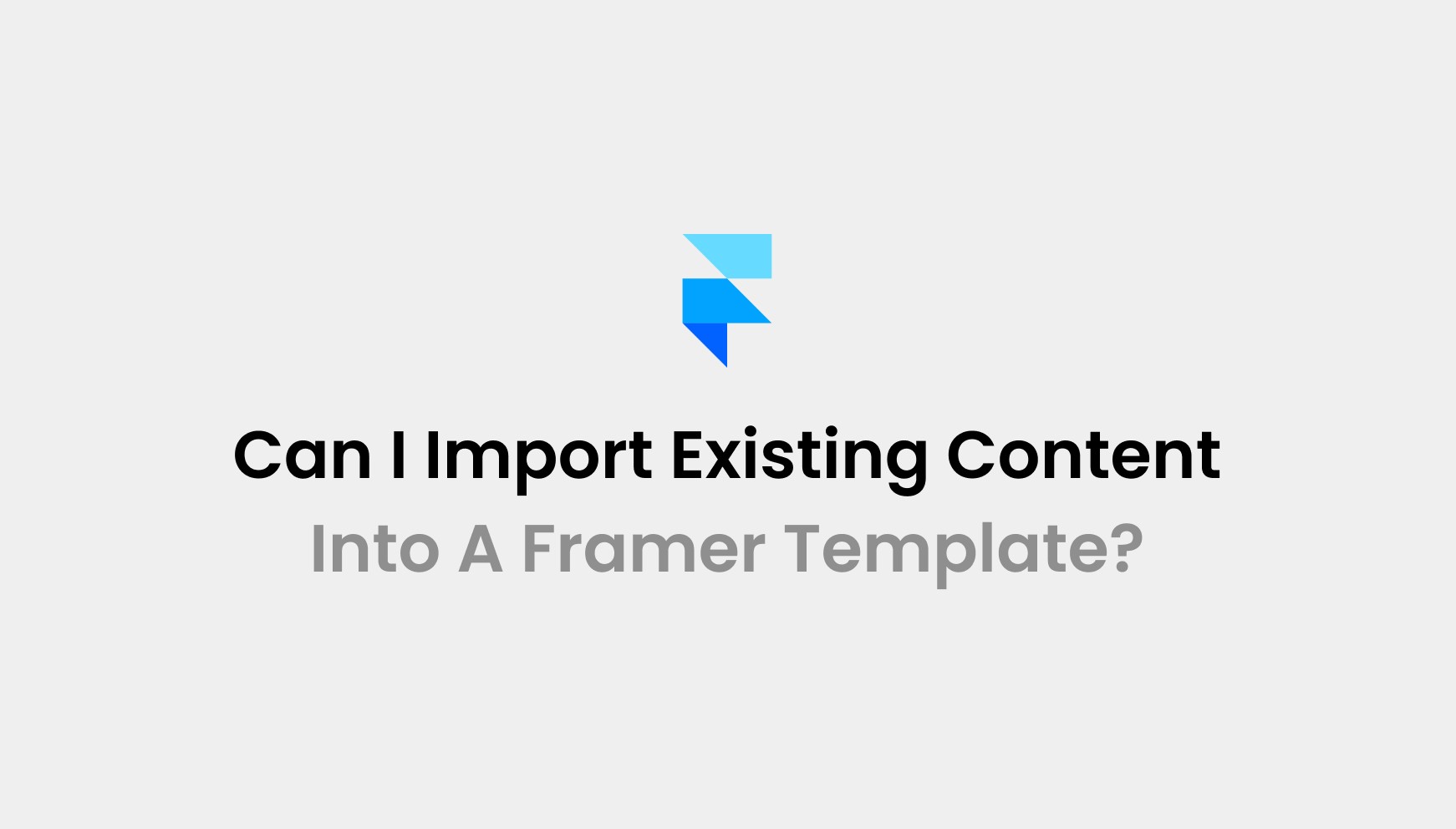
Yes, you can easily import existing content into a Framer template.
For this, choose anywhere between the Figma-to-Framer plugin or the HTML-to-Framer browser extension. With these tools, you can efficiently copy layouts or pull live sections. Move structured content into your project with clean layers and precise formatting.
Framer makes content migration much easier. It offers flexibility to rebuild layouts visually, connect CMS collections. The best part? You can refine each section without any manual coding needed. This makes a design-to-build process without any delays and removes unnecessary development overhead.
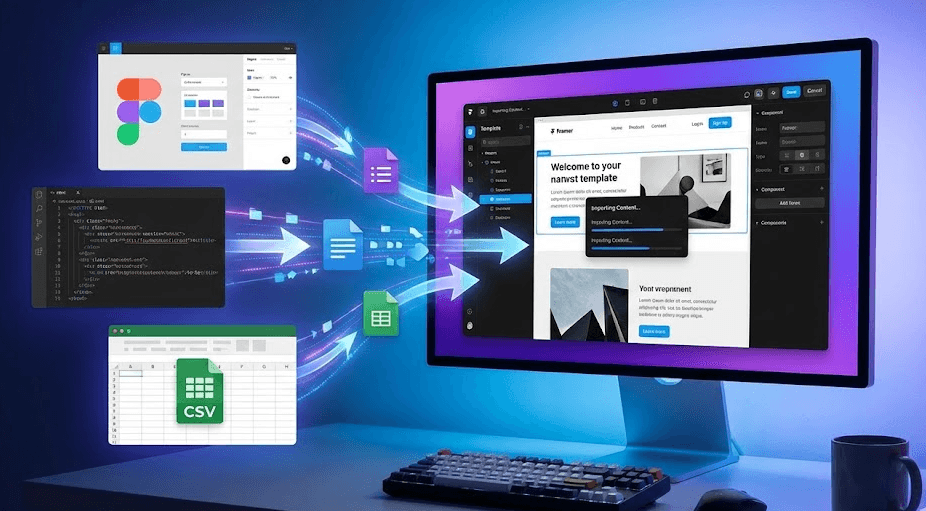
At this stage, Pentaclay can upgrade your workflow even further. We deliver premium Framer templates trusted by global teams. With 50+ high-converting templates, fast updates, and extended licensing, we offer you a complete library to launch professional websites quickly.
How Do I Import Existing Content Into A Framer Template?
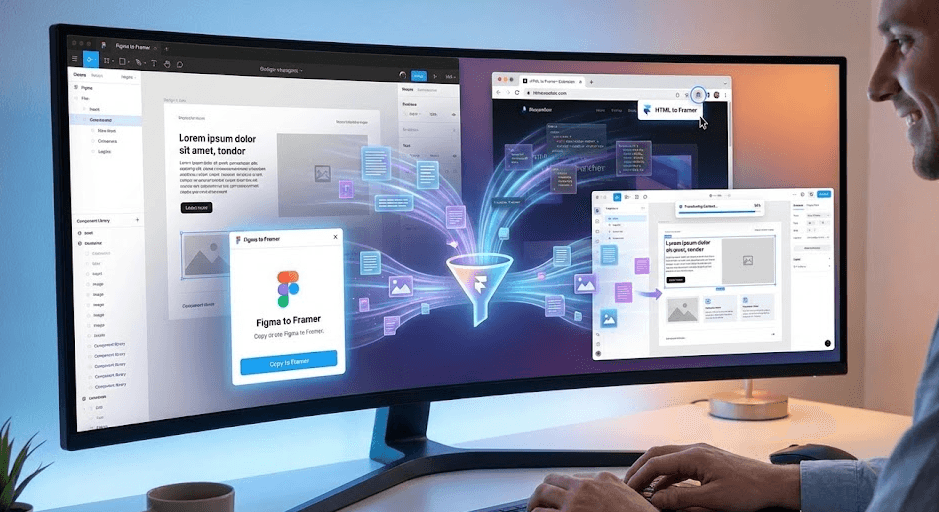
You can move existing content into a Framer template using tools that capture layouts, copy live elements, and import structured data. This creates fast workflows.
Method 1: Using The Official “Copy-From-Site (HTML/CSS)” Tool
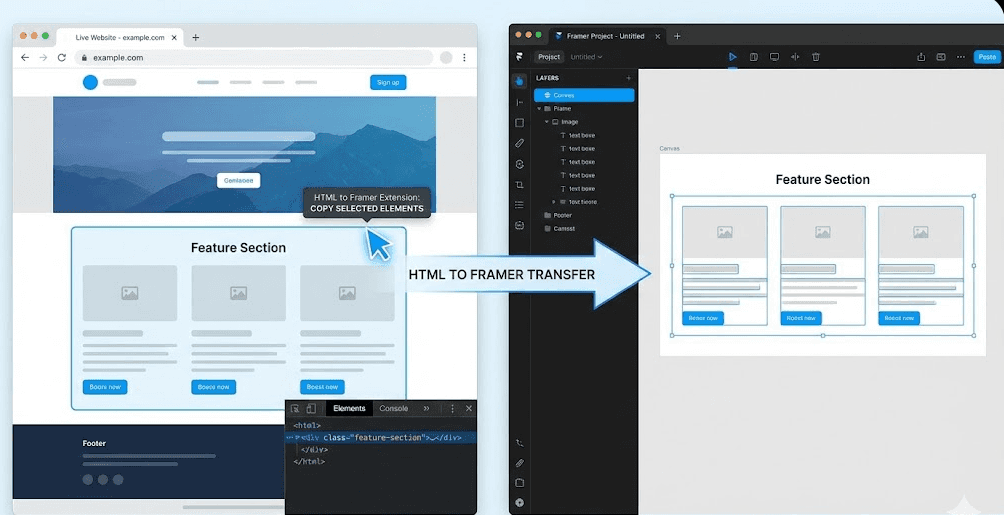
The HTML-to-Framer Browser Extension is a Chrome-based extractor that grabs live HTML, CSS, and DOM structures from any owned site. You capture real components, remove noisy wrappers, and move clean sections straight into Framer for rapid production.
Here is how you can utilize this extension to import your existing content into the Framer template:
First, install the HTML to Framer extension from the Chrome Web Store to start the extraction process.
Next, open your site and activate the extension from the browser toolbar.
Then, hover each target element to lock onto its exact DOM node for precise capture.
Press Shift to grab several nodes during a single sweep when you want higher speed.
Tap Esc to climb the DOM tree and reach larger container elements.
Click once to copy the active selection with structure and styling intact.
Move back to Framer and select the frame that will receive the imported section.
Press ⌘V on Mac or Ctrl+V on Windows to place the copied HTML inside your layout.
Method 2: Import Content Via CSV / CMS-style Bulk Import
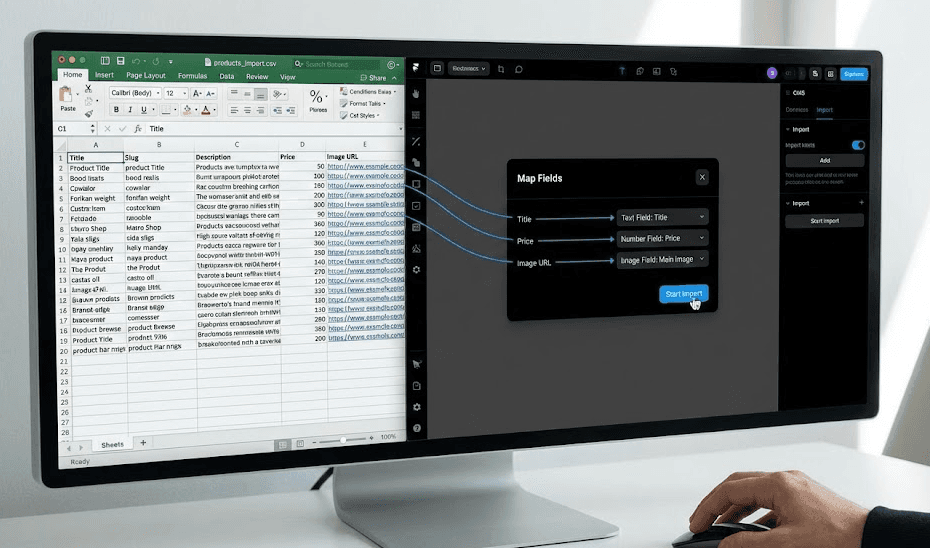
Use this method when you manage large datasets from Airtable, Notion, Shopify, editorial pipelines, or analytics exports. You load UTF-8 CSV files, map each column to Framer CMS fields, and generate structured collections ready for dynamic pages.
First, export your dataset as a clean UTF-8 CSV under 5MB to keep parsing stable.
Shape every column with strict types: HTML for rich text, image URLs for media, ISO values for dates, CSS formats for colors, and booleans for toggles.
Next, open your CMS collection and create fields that match each CSV column by name and type.
Add a Slug field to tag each item with a unique key for later updates.
Then, open the CMS panel and click Import in the toolbar.
Drag your CSV into the window or choose it from your system.
Review the field mapping and confirm that each column connects to the correct CMS field.
Click Import to load all rows into the collection in one sweep.
Use CMD+Z on macOS or CTRL+Z on Windows to revert the import instantly.
Import again later to update items with matching slugs or skip any duplicates.
Method 3: Figma to HTML with Framer Plugin
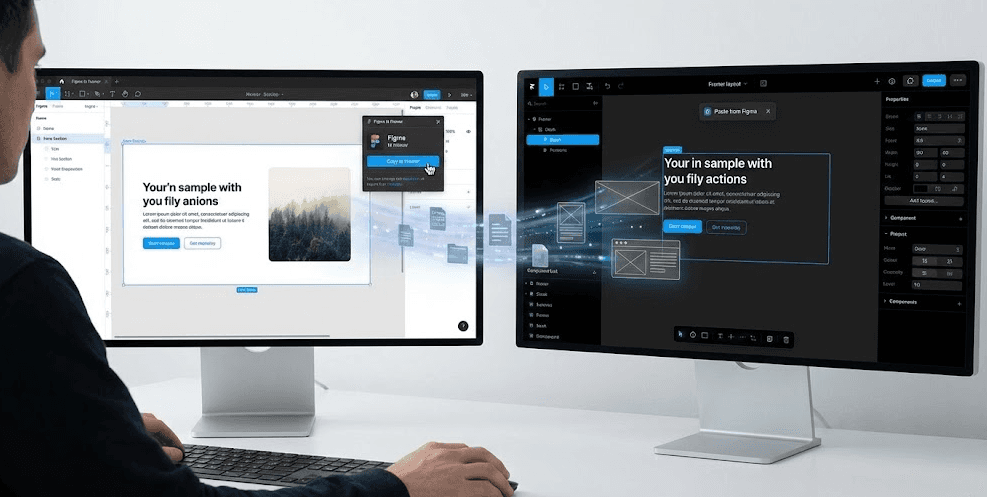
Use this method when you build layouts in Figma and want fast transfer into Framer. The Figma to HTML with Framer Plugin lets you copy frames, groups, text, images, and vectors as structured layers ready for responsive refinement.
First, install the Figma to HTML with Framer Plugin from the Figma marketplace.
Open your Figma file and pick the exact frames, groups, or elements you want to migrate.
Next, open the Figma menu and run the plugin to convert your selection into a clipboard-ready export.
Move to your Framer project and open the canvas that will receive the imported layout.
Press Ctrl+V on Windows or ⌘V on macOS to drop the copied structure into Framer.
Then, inspect width and height settings for every imported layer to maintain accurate responsive behavior.
Check any Auto Layout logic from Figma because clean hierarchy transfers produce better flexibility inside Framer.
Add Framer-native components for items not transferable from Figma, such as videos or interactive elements.
Import small sections instead of entire pages to avoid layout conflicts and structural noise.
From here, refine spacing, breakpoints, and component behavior to match your production layout needs.
Method 4: Full Rebuild Migration Method
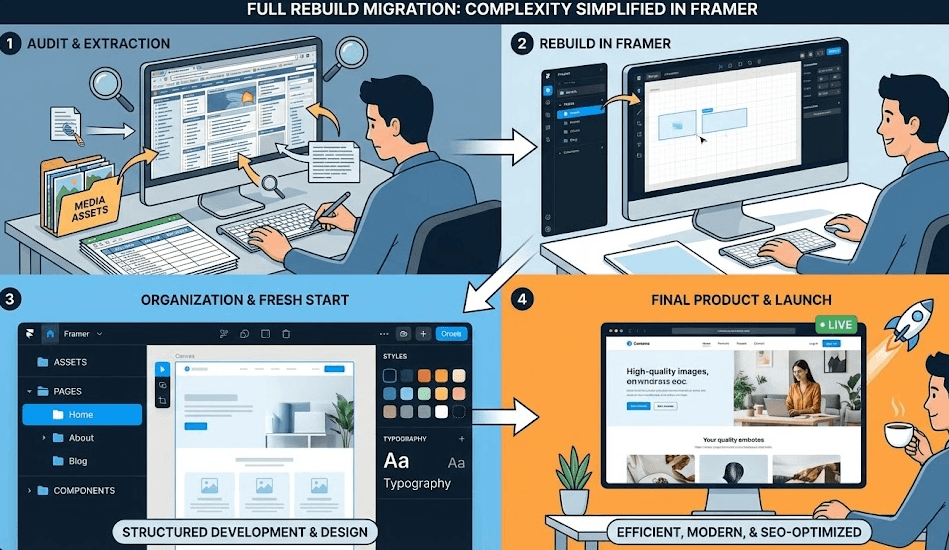
A full rebuild migration uses Framer as your new foundation. You reconstruct every page with fresh layouts, optimized assets, and precise SEO mapping. This approach gives you cleaner code, faster load times, stronger rankings, and full creative control.
First, run a full platform audit to capture page inventory, media assets, structured data, and high-value keywords.
Extract SEO metadata, schema markup, internal link paths, and performance metrics to protect ranking strength.
Next, create a staging project in Framer to rebuild your design system, layout logic, interactive components, and brand visuals.
Import images, icons, and copy, then recreate hero sections, grids, content blocks, and conversion units with Framer’s layout tools.
Add CMS collections for blogs, categories, campaigns, and evergreen pages to replace older back-end structures.
Then, rebuild lead capture forms, embeds, analytics scripts, CRM widgets, and automation triggers inside Framer.
Test layouts on every viewport to validate spacing, breakpoints, animations, and user flows.
After that, map old URLs to new paths and add 301 redirects to protect backlink equity and crawl stability.
Validate internal routing, sitemap references, canonical tags, and structured data to maintain search engine clarity.
Publish your rebuilt site and monitor analytics, search impressions, and crawl data to track post-migration performance.
From here, update pages with Framer’s CMS to refine content, boost engagement, and improve ranking momentum.
In Closing
Moving your existing content into a Framer template is simple once you use the right methods. You can copy live sections, transfer Figma layouts or rebuild full pages with clean structure and stronger performance. These workflows give you faster production, smoother editing and a more polished final site.
If you want to launch high-quality Framer websites even faster, explore Pentaclay’s premium template library and upgrade your workflow today.
Frequently Asked Questions
Question: Can I Move A Complete Website Into Framer Without Rebuilding Everything?
Answer: You can migrate large sections with the plugin or extension, but full websites still need manual rebuilding for accurate layouts, responsiveness and SEO structure.
Question: Does Framer Keep My Original Styling When I Import Content?
Answer: Most styles transfer correctly. Advanced visual effects or unsupported properties may need manual adjustments inside Framer.
Question: Can I Migrate Blog Posts Or Product Data Into Framer Cms?
Answer: Yes. You can import structured data through CSV to populate CMS collections for blogs, case studies and product catalogs.
Question: What If My Old Site Uses Custom Components Or Scripts?
Answer: You can recreate key interactions with Framer components or embed external scripts directly through project settings.